
User Guide
Step 1 - Plug in your Detector
Use the supplied Ethernet cable to connect your detector to the internet, simply plug the cable into the detector and an open port in your router. You will also need to plug in the supplied USB cable to the detector as well as any USB port available or the supplied USB wall-adapter (US wall outlet).
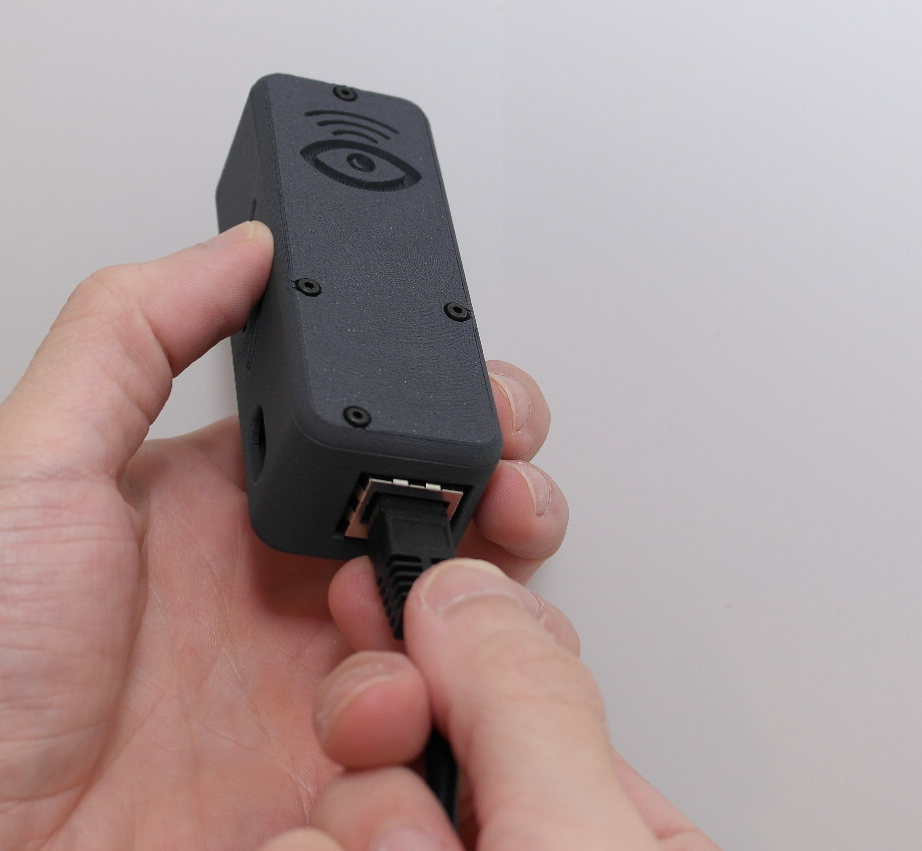
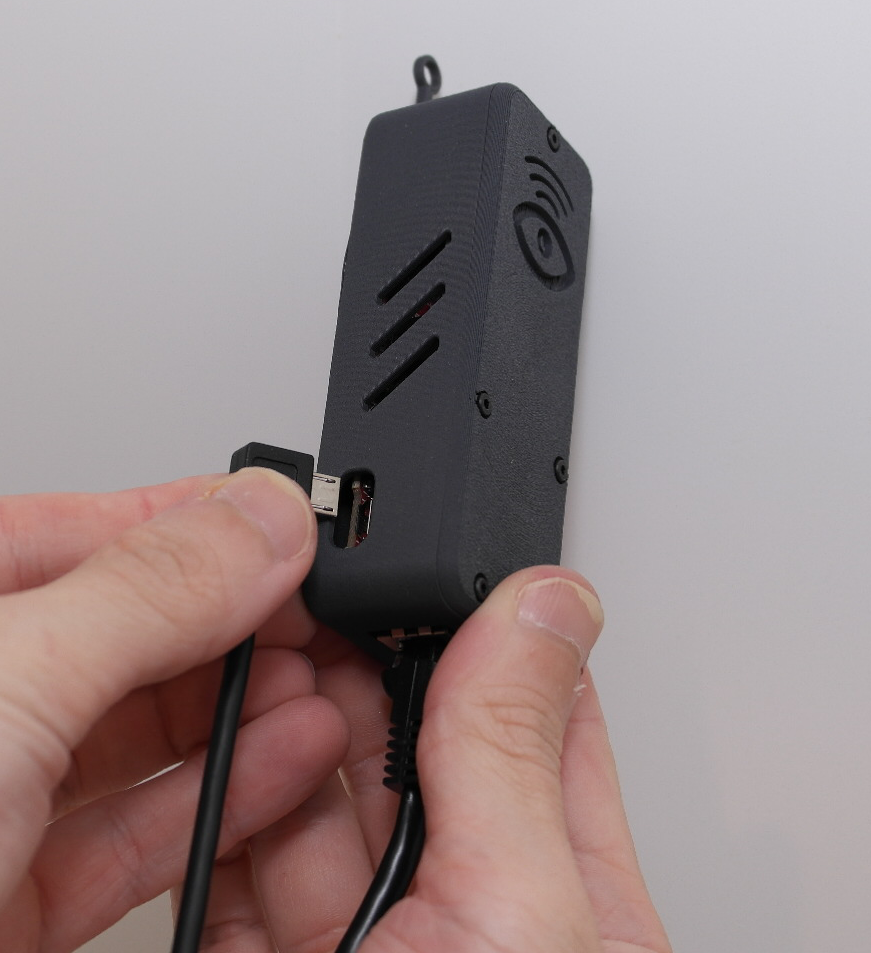
The green light on the bottom should be solid, and the orange light should be flashing.
You should mount the device on the wall for best performance (but is not 100% necessary); try to keep at least a few feet away from other electronics. The detector works based on proximity to the jammer, so a central location is best to cover your entire home.
Installation Tips:
Make sure the Ethernet connection is hard-wired all the way out to your ISP, meaning, do not plug the device into a wireless mesh-node.
It’s best to wall mount the detector around 5ft high, but this is not required.
Make sure to keep the detector at least 1ft away from other radio electronics (like your wireless router).
You should place the detector in a central location around your home/area you want to protect.
Microwave ovens can trigger false alerts if the detector is too close to the microwave (a couple feet).
Step 2 - Install the App
Download the mobile App from the App/Play Store, you can install the App on your smartphone or tablet. Once installed, you must allow push-notification permissions and Bluetooth permissions so you can pair the device and receive alerts. Then, enter your email address to receive a one-time-code to login. This email will be your account and notifications will also be sent to your email incase the push-notifications do not come through for extra security.


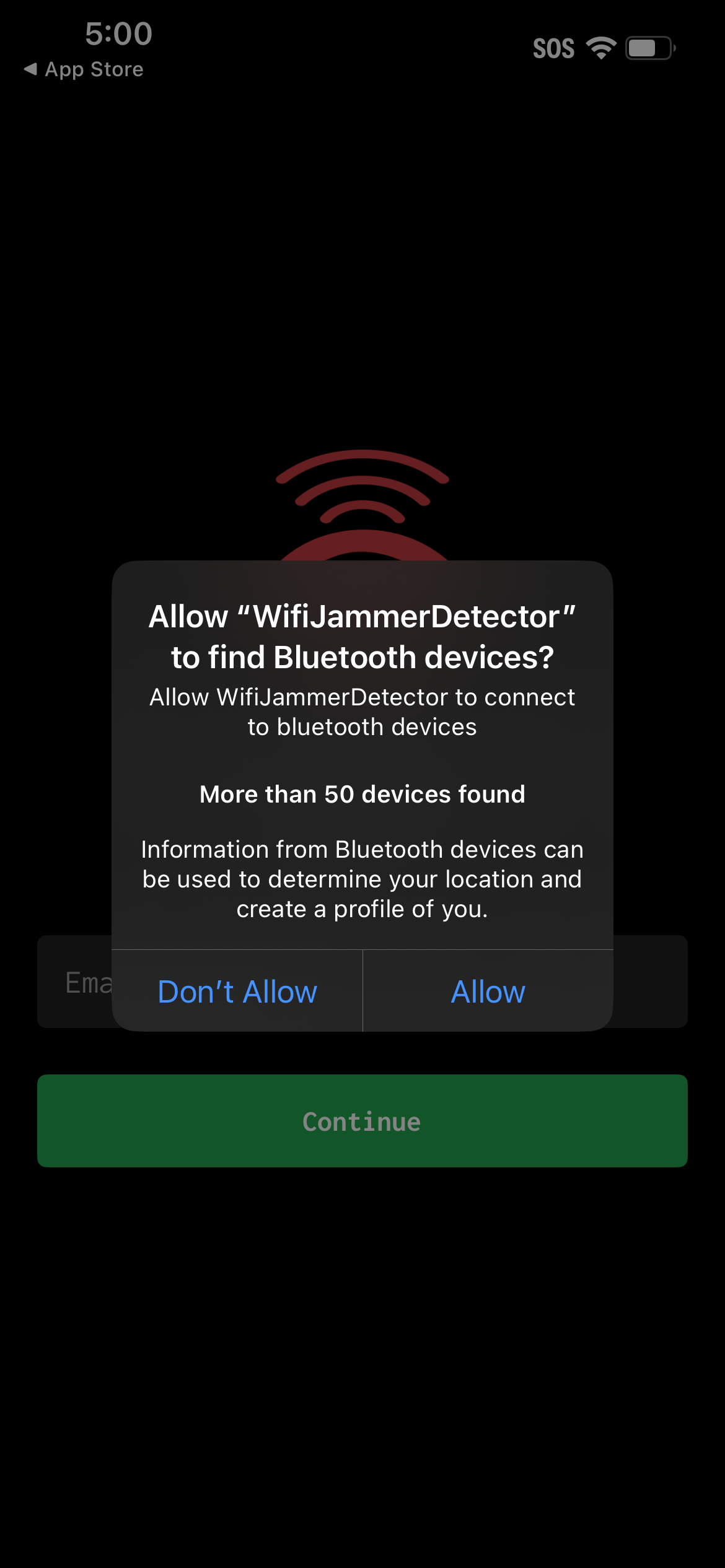
You must Allow Bluetooth permissions to add your detector to your account. After setup, you can revoke permissions or turn Bluetooth off.
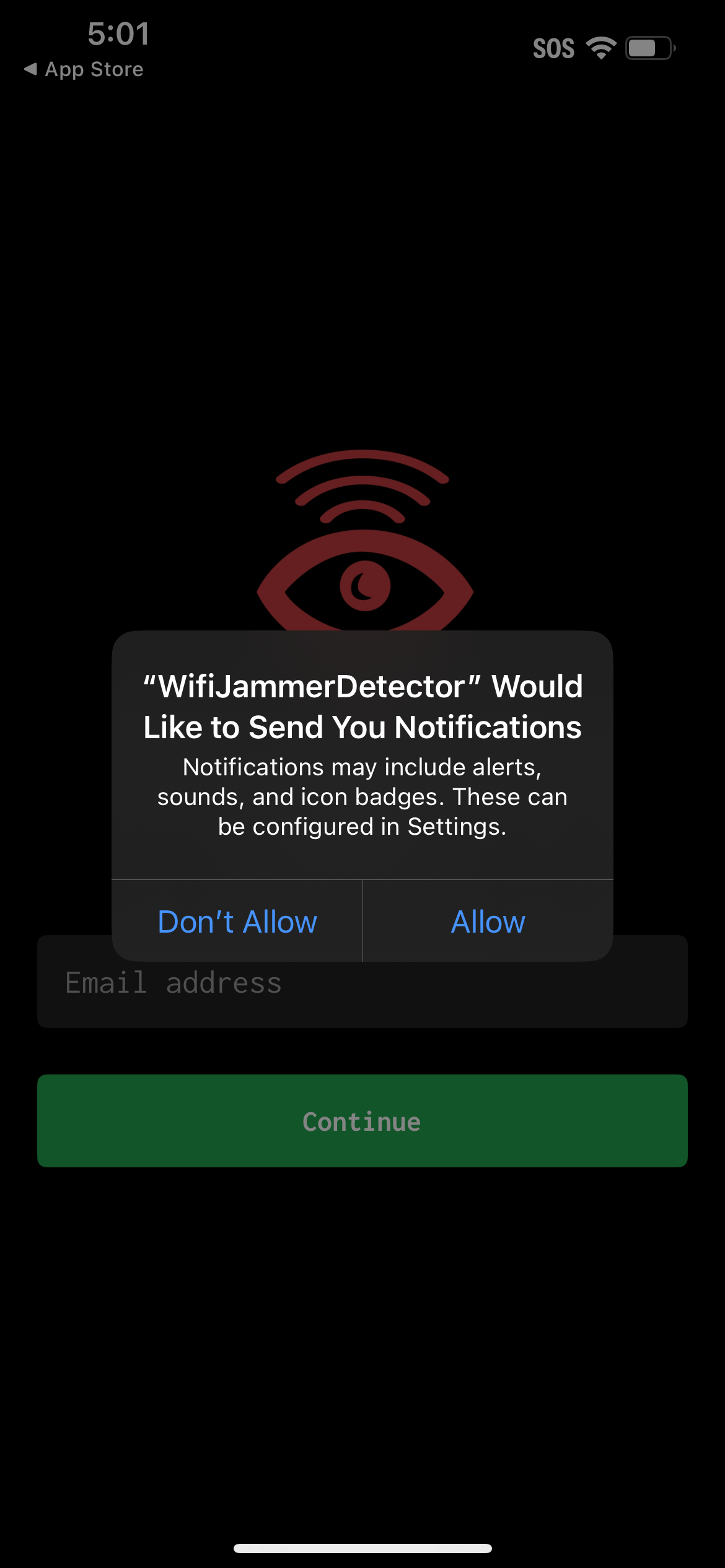
You must Allow Notification permissions to use the App, we will only send you notifications (and emails) for the following events:
Detector fell Offline
Detector came back Online
Detector detected Wi-Fi Jamming
Jamming Condition Cleared
Detector detected Deauthentication Flood Attack
Flood Attack Condition Cleared

Enter the Email address you wish to receive notifications at, this will be your account email once you confirm the next step.
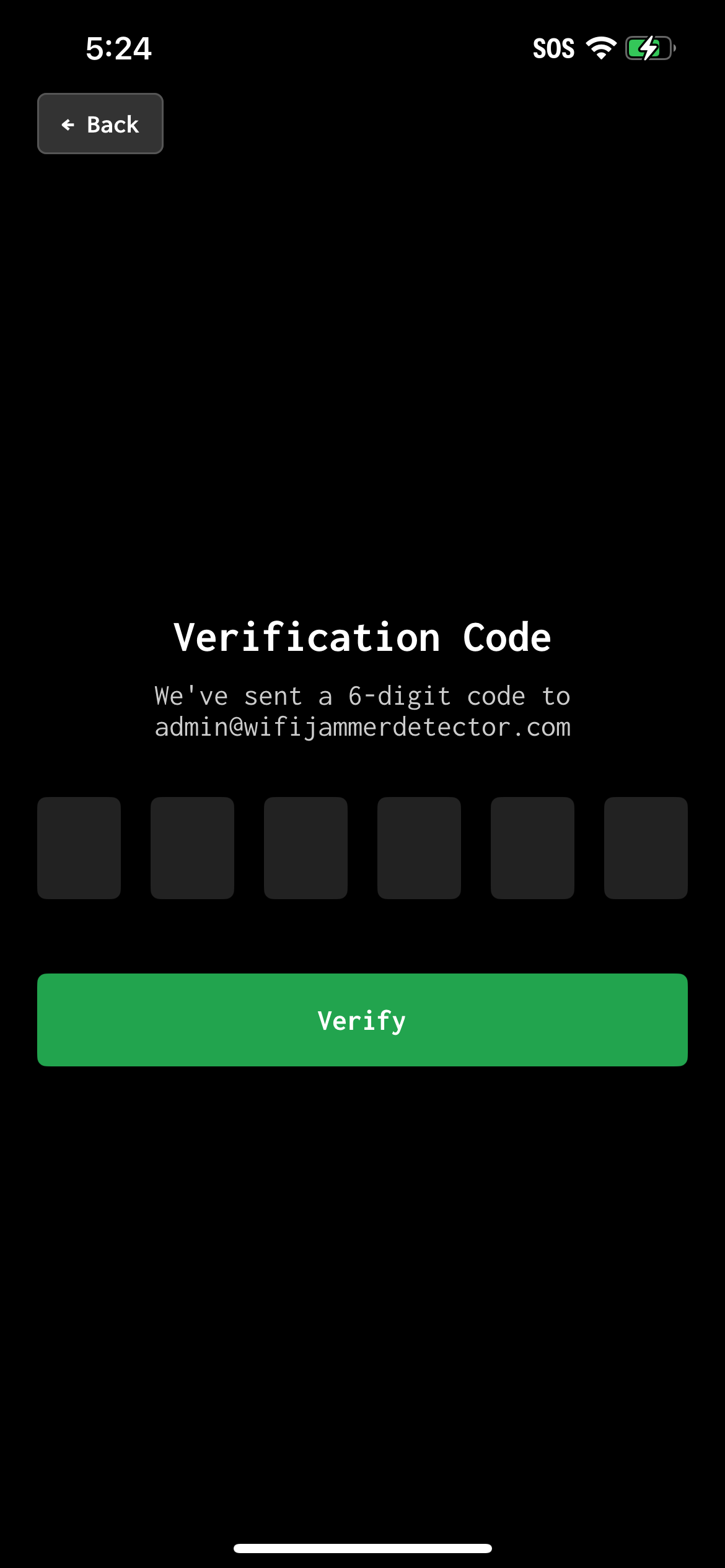
You should have received a 6 digit code, confirm ownership of your email with this code (check your spam folder if you did not receive it).
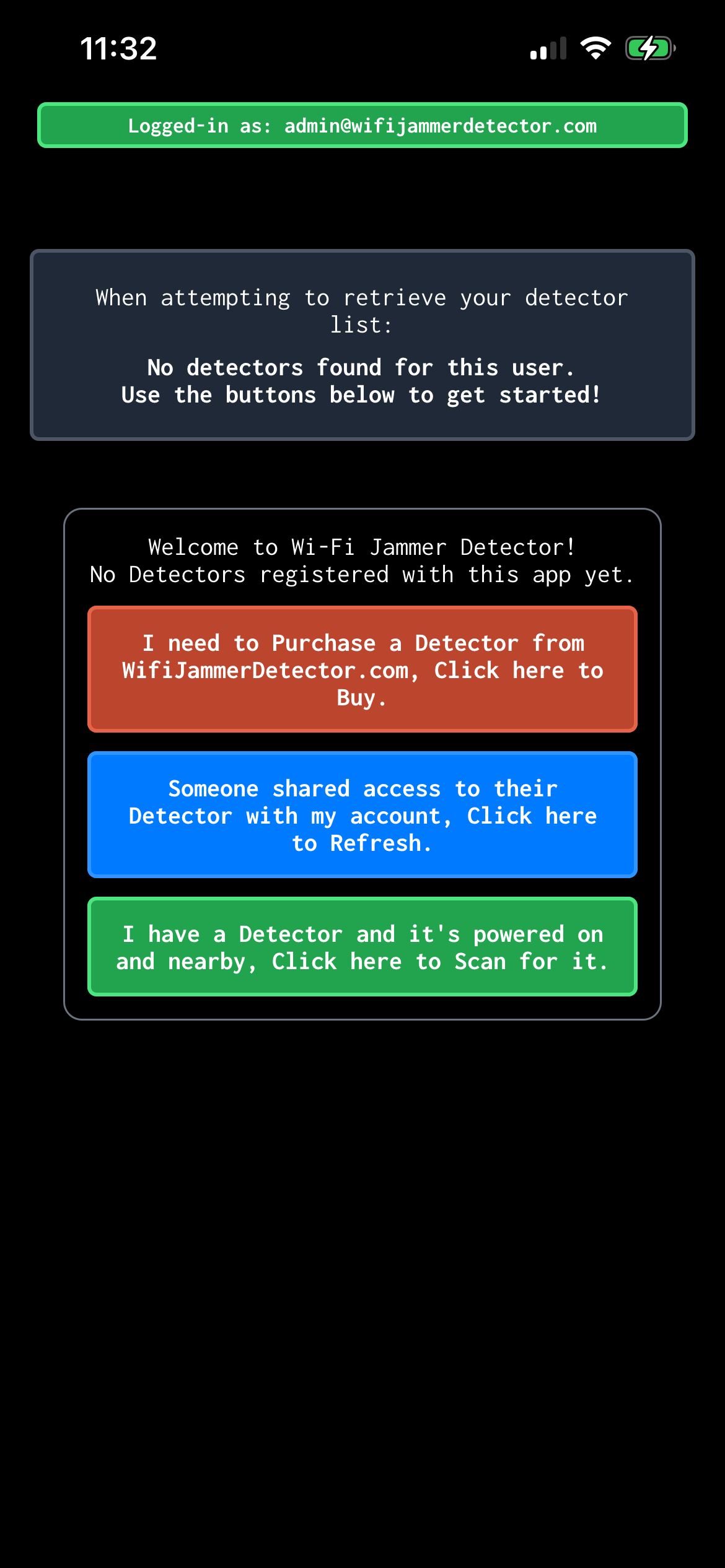
Once logged in, you will see a few buttons, click the last one (green) to scan for your nearby and powered-on device.
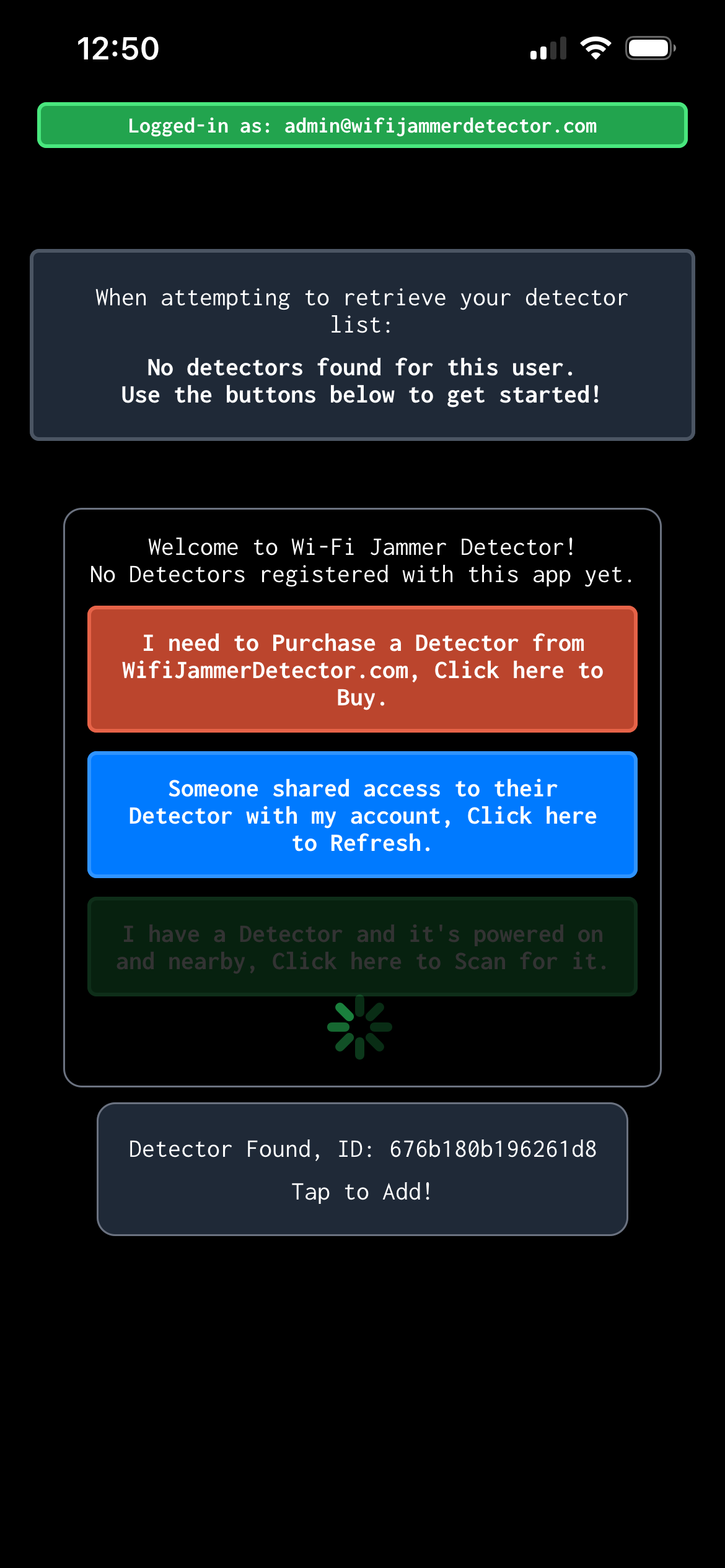
You will see the device show up below, make sure the ID matches the sticker on the back of your detector. If you do not see the device, make sure the device is powered on and you are near it (same room).
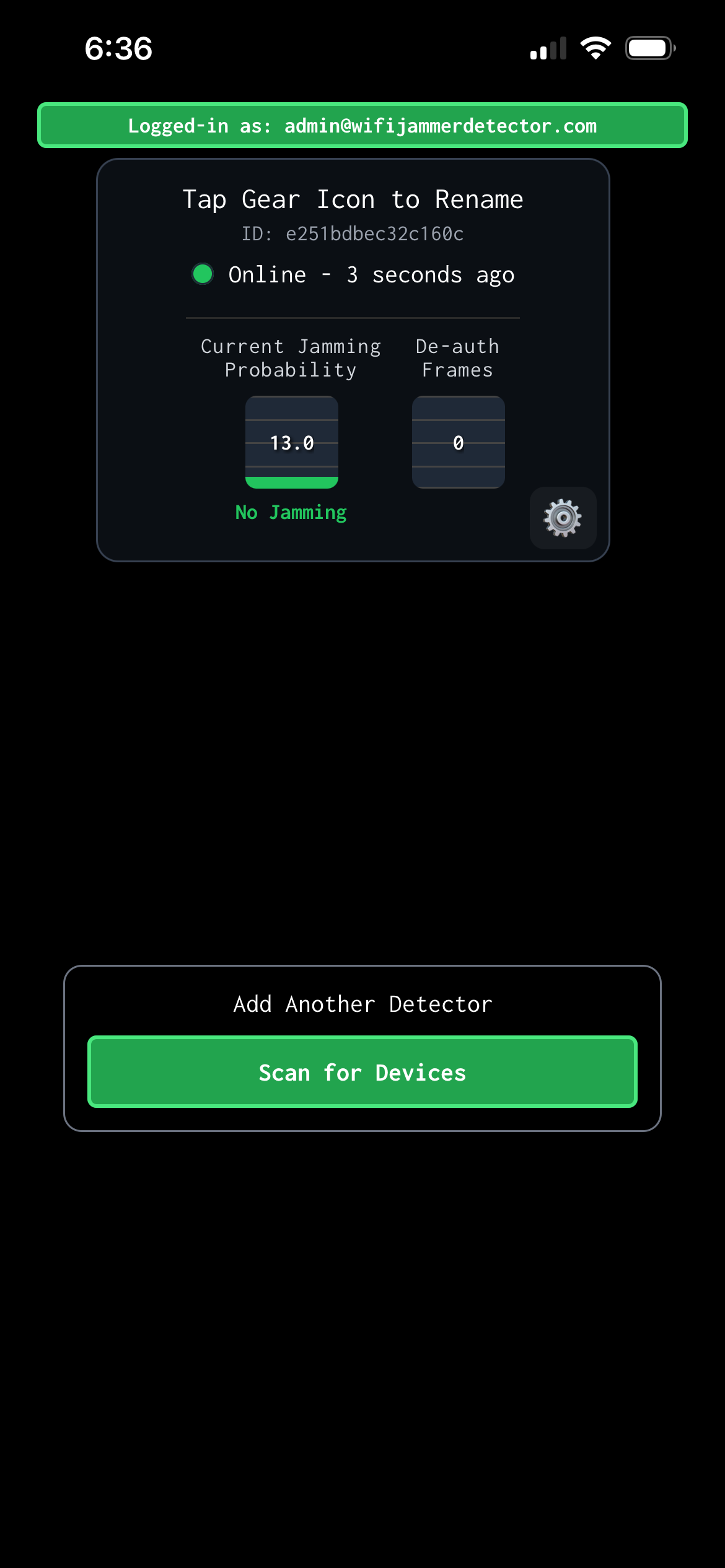
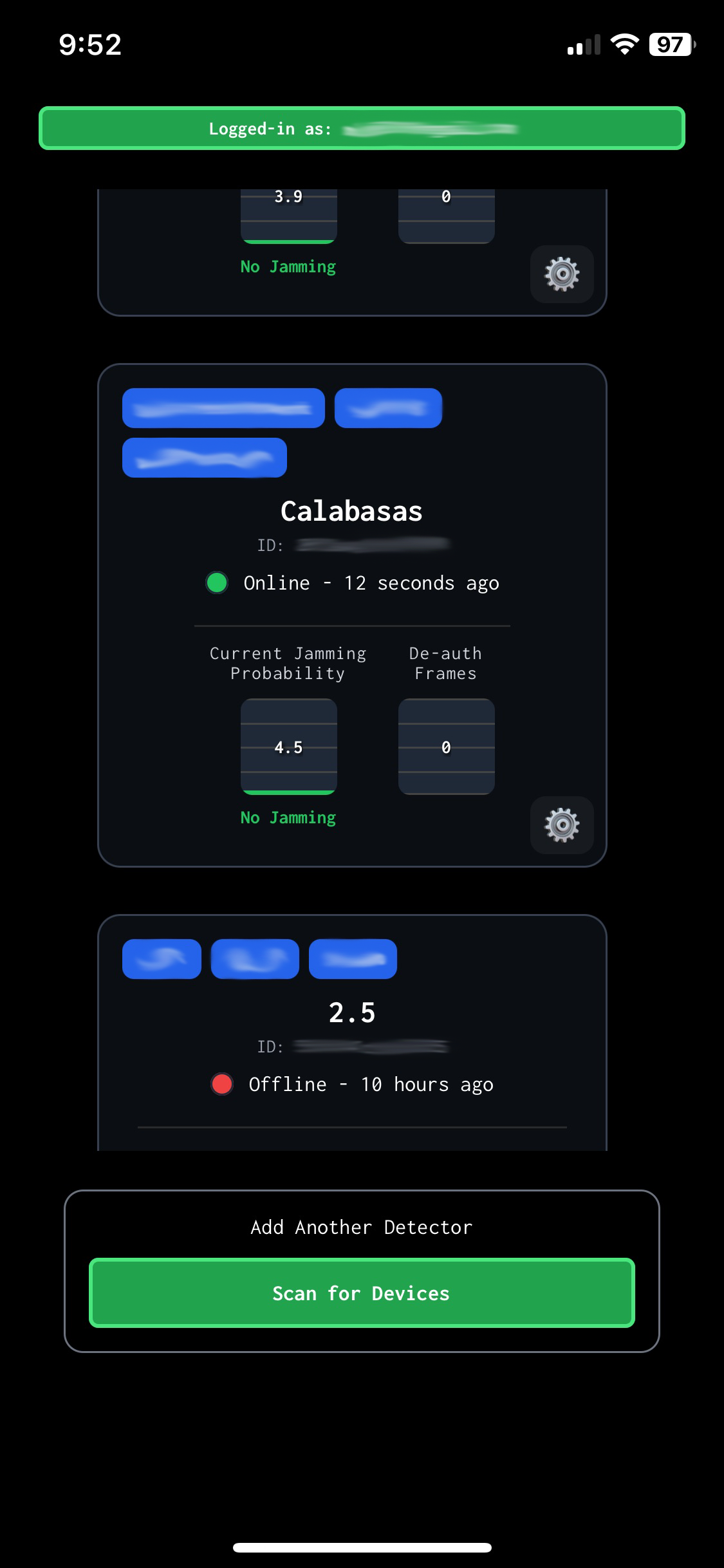
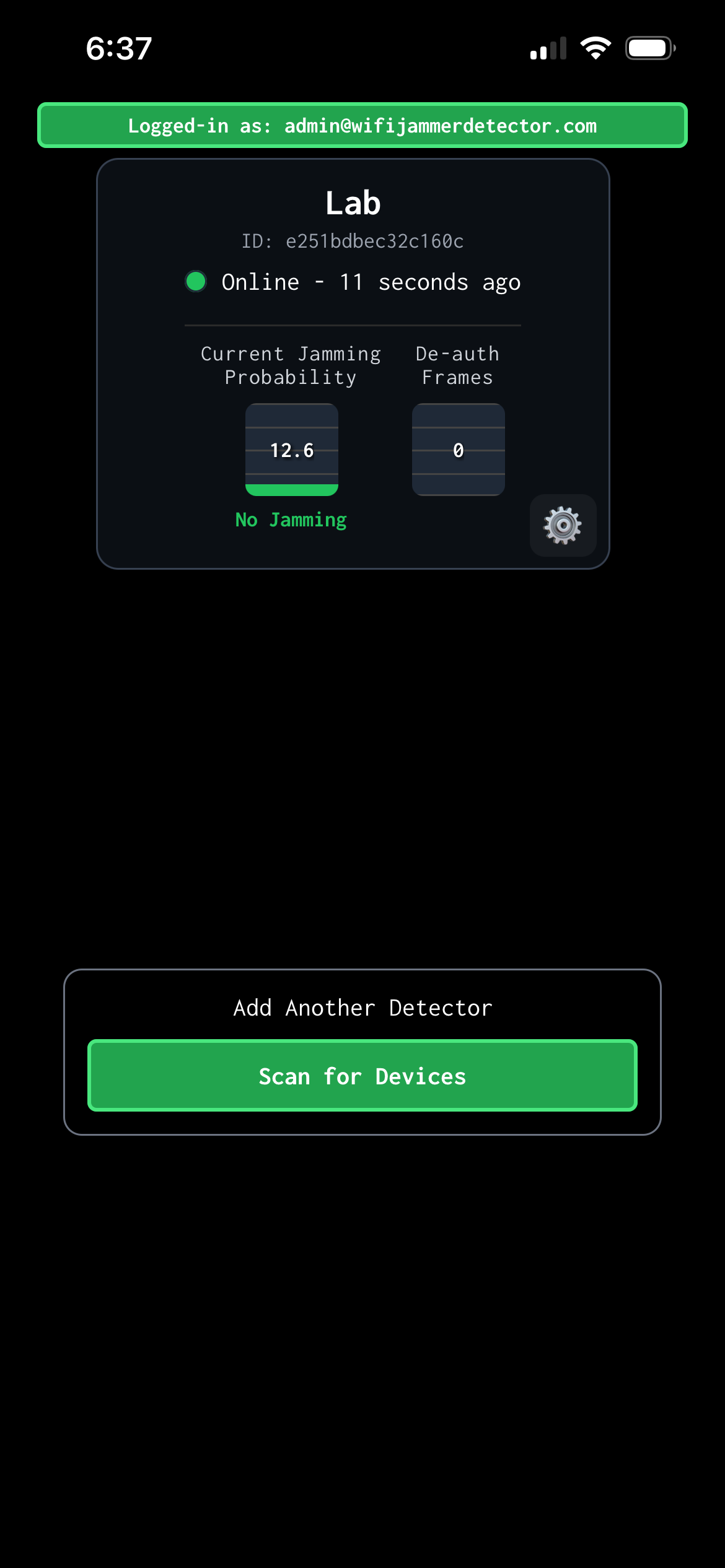
When you tap the device, it will be bound to your account (and locked until you delete it). You will see a tile showing the following:
Online/Offline status and last ping time
Current Jamming Probability meter
Anything below 20.0 is considered normal, you may see this jump around from ~4.0 (green) to ~15.0 (orange) depending on how noisy the environment is.
Anything over 80.0 is a jamming event and you will get an immediate alert.
Between ~40-60 may be a jamming event and we will notify you depending on how long the interference lasts.
Note, you don't ever need to manually monitor this, we alert you automatically even when the app is completely closed.
If you click on the tile, you can see 24-hour histories of the online/offline status and the jamming probabilities.
De-auth Frame Counter
Displays the number of de-auth frames captured in the previous ~10 seconds
If you click the Gear icon, you can set the device name, share the device with other users, or delete the device from you account:
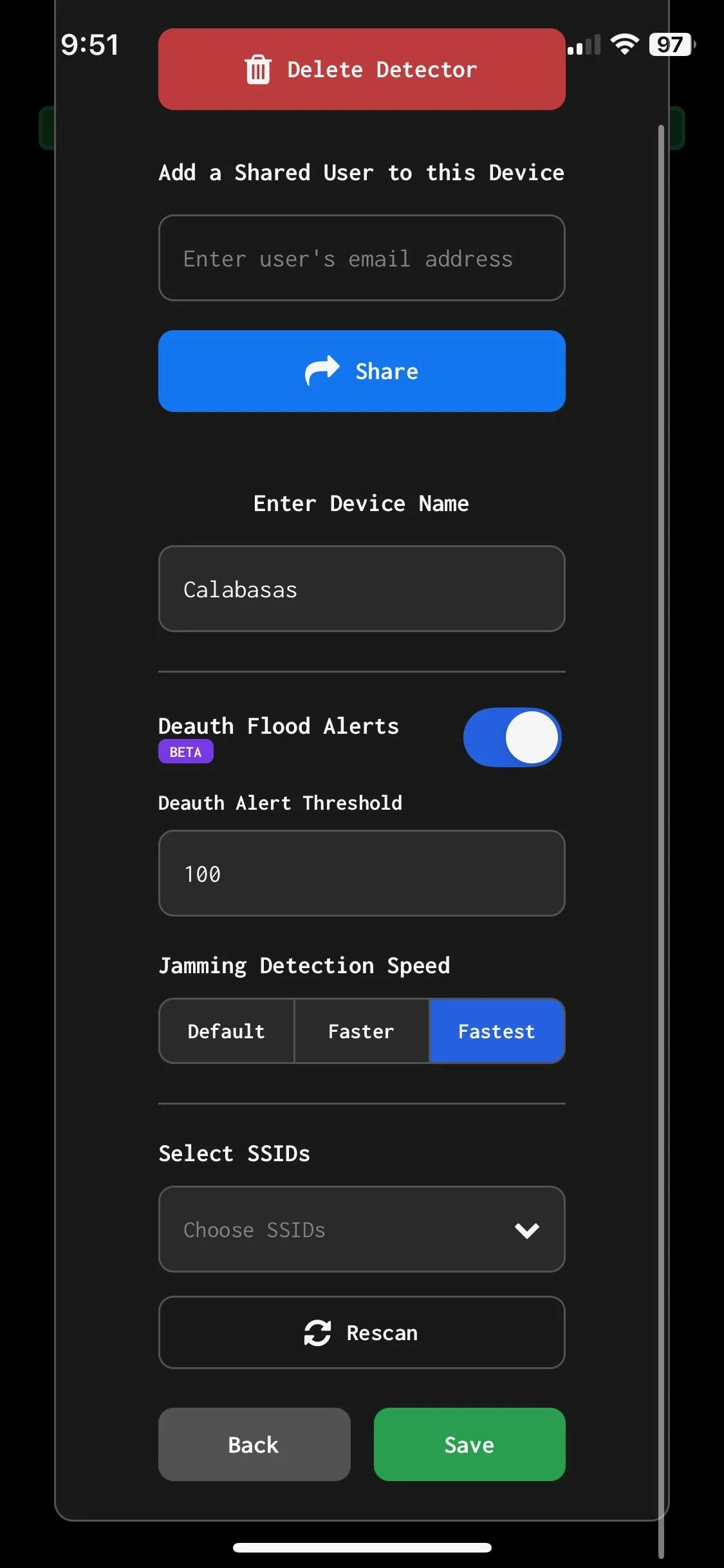
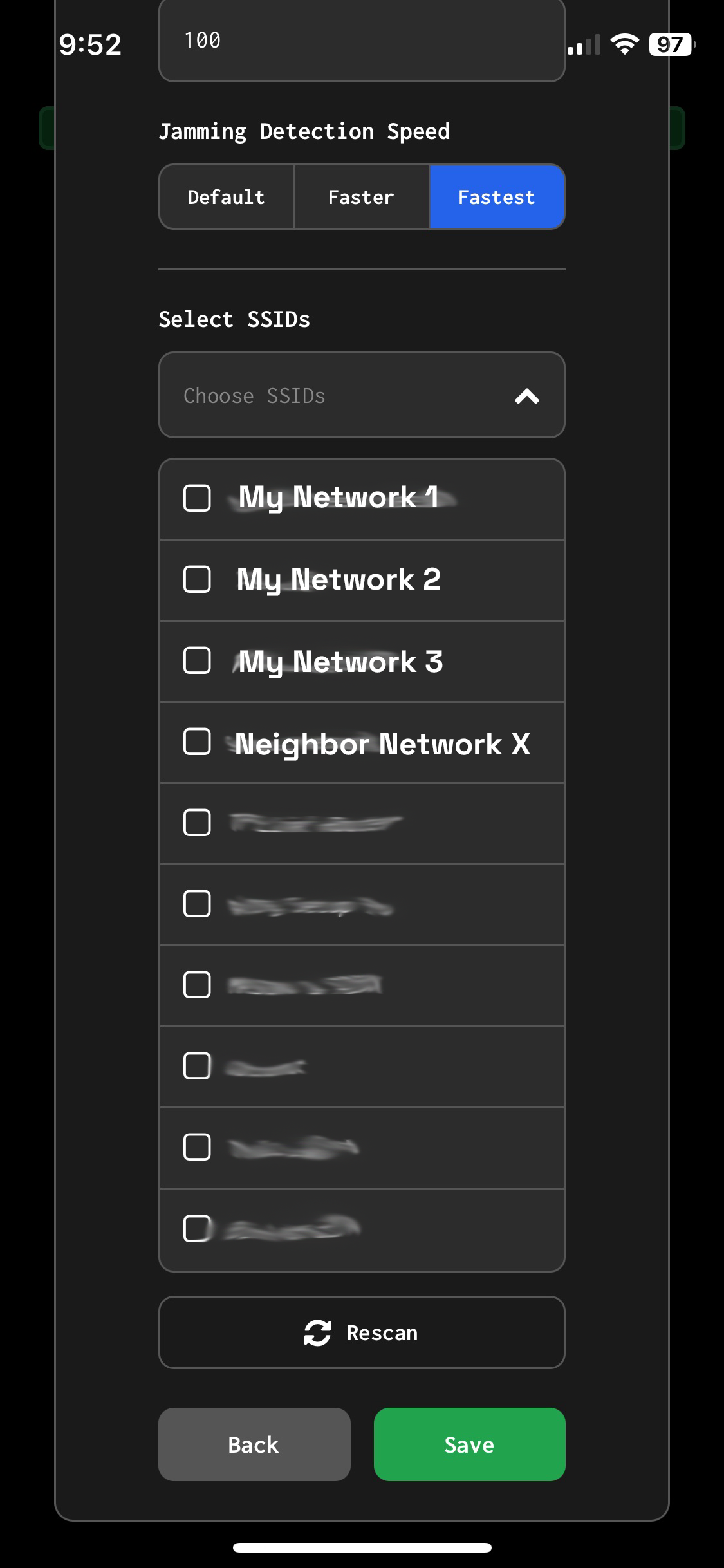
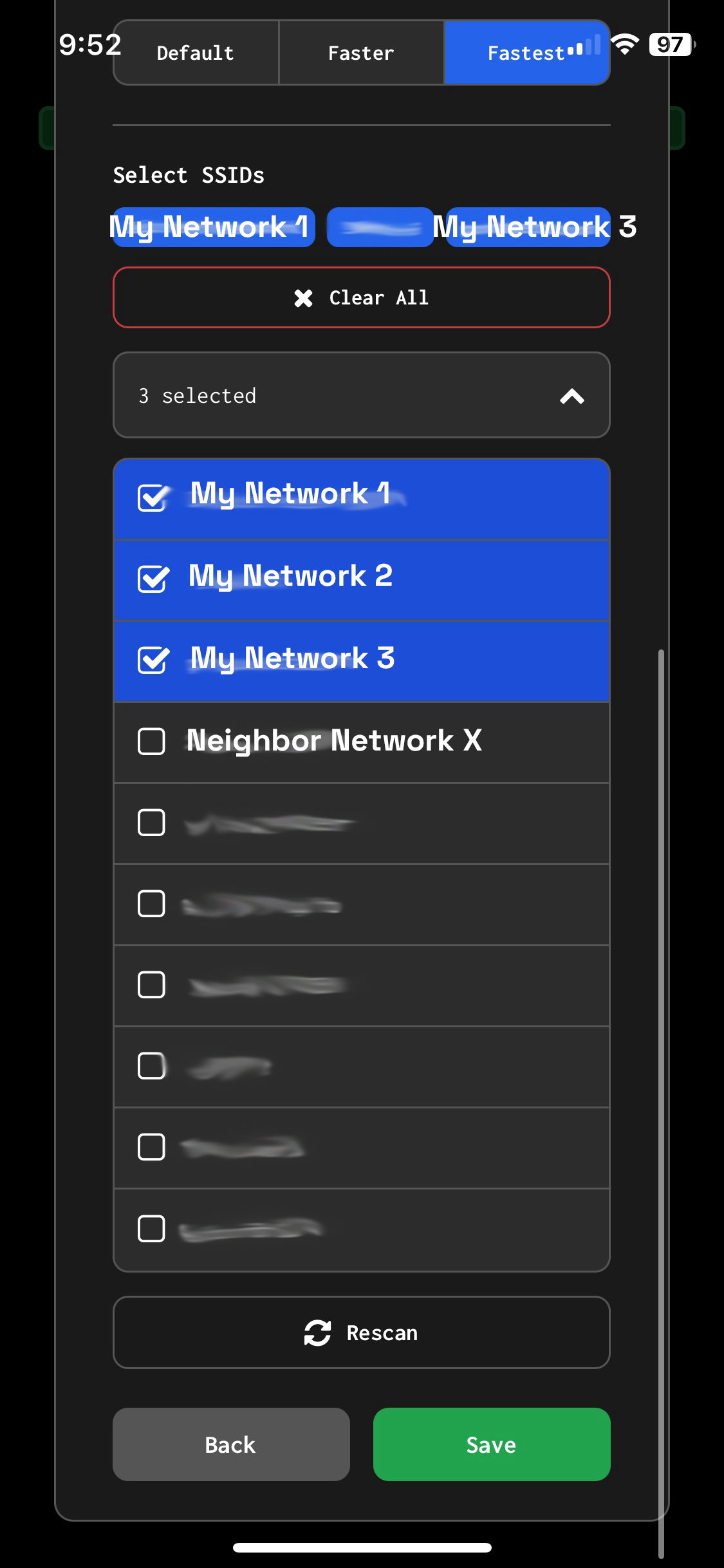
You can also turn on alerts for De-auth flood attacks and set the threshold from 40-1000 frames. For De-auth flood detection to work, you MUST scan for SSIDs and select your own network(s) in this menu — make sure to hit “Save” afterwards.
Next, you can adjust the speed of the jamming detection from Default (60 seconds) to Faster (45 seconds) or Fastest (30 seconds). We recommend you try Faster or Fastest only if your Wi-Fi environment is stable, if you get false alerts on these settings, you should move up to one setting slower. Soon we will introduce an automatic traversal of these settings based on your Wi-Fi environment’s stability so you don’t need to manually adjust this. Note that network delays may cause the notification to come in a bit later than the times quoted above.
Naming the device will help you keep track of which device is which when you get alerts:
Finally, you can click on the device tile to load the 24-hour histories of online/offline status and the Jamming detections (and scrub through with timestamped markers now):
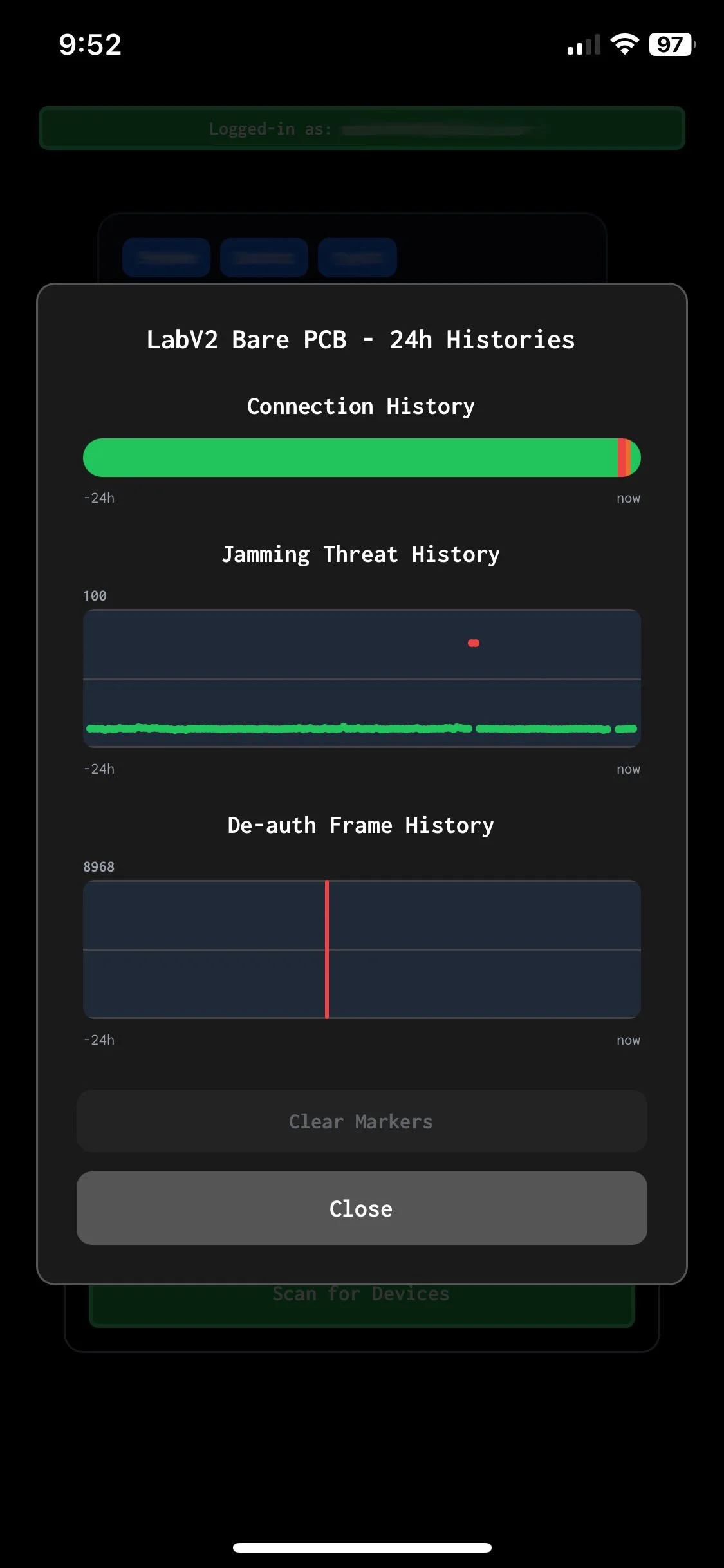
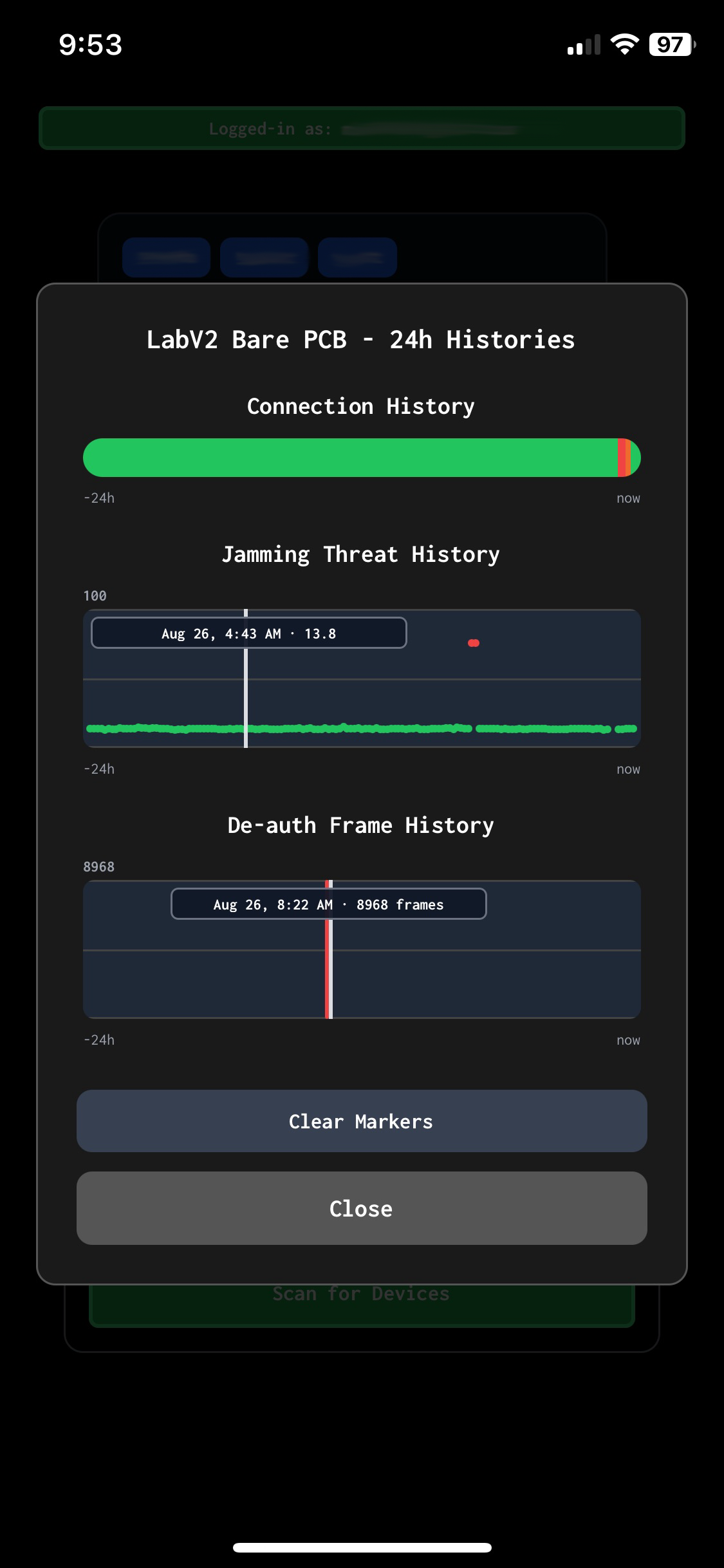
Connection history shows Grey if the device was not setup yet, yellow for a partial connection (only in regard to the Ethernet connection to the internet), red for an outage, and green for a normal connection.
The jamming threat history shows green for normal conditions, and orange/red for high interference or likely jamming attacks.
De-auth frame history is color-coded similarly. Deauth frames are only counted when:
The TA or RA field matches the BSSIDs corresponding to the SSIDs you have selected in the previous configuration steps. Note this only applies to the 2.4GHz band.
The TA or RA field is the broadcast MAC address FF:FF:FF:FF:FF commonly used in attacks.
Step 3 - Visit the Web Pro Portal
For power-users who want to dive deep into the data the detector uses to detect jamming, we have introduce the Web Portal — portal.wifijammerdetector.com
Here you can log in using the email you used to set up your detector and get detailed data on key metrics the detector uses to detect Wi-Fi jamming such as RF energy and Wi-Fi beacon count.
You can see up to 30-days in the past, extending beyond the capabilities of the App.